Up and running
in four steps
From download to your first haptic pulse in under two minutes.
Installation guide
How to install HapticPad
-
Mac app
Download HapticPad
Download HapticPad from the Mac App Store. Once installed it will appear as a small icon in your menu bar - no Dock clutter.
Requires macOS 13 Ventura or later · Works on any Mac with a Force Touch trackpad
-
Browser extension
Add the browser extension
The extension detects when your cursor hovers over links, buttons, and inputs, and signals the Mac app to fire haptic feedback. It sends only element type - no page data ever leaves your browser.
Chrome or Firefox: Install the extension from your browser's store below.
Safari: The extension is bundled with the app - no separate download needed. Just launch Safari and grant any permissions requested.
No browsing data collected
-
Settings
Configure your haptic patterns
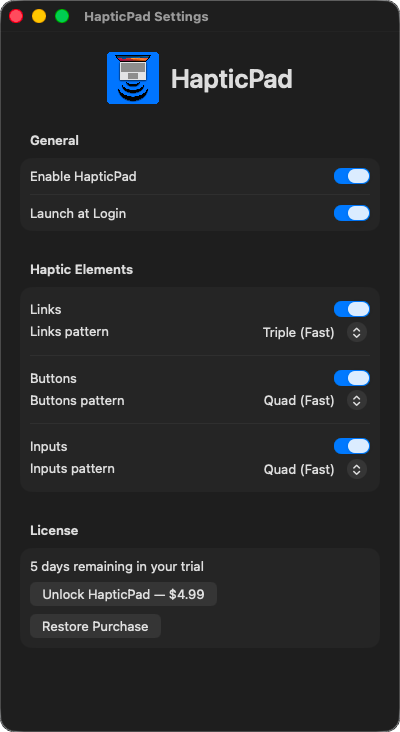
Click the HapticPad icon in your menu bar to open Settings. Choose which haptic pattern fires for links, buttons, and inputs - or leave the defaults and start browsing immediately.
There are seven patterns to choose from: single pulse, double (fast / medium / slow), triple (fast / slow), and quad.
Each element type - link, button, input - can be configured independently.
-
License
Unlock the full app
HapticPad comes with a full 7-day free trial - no credit card, no account required. When you're ready to go unlimited, open the app from the menu bar and tap the Purchase button inside the app. That's it.
$5 - one-time
Lifetime license · All future updates · Restores on any Mac with your Apple ID